The Dock stays where you want it.
Scroll to see how.
You’re working on the right.
Your Dock is on the left, just right.
One touch at the bottom, and it’s gone.
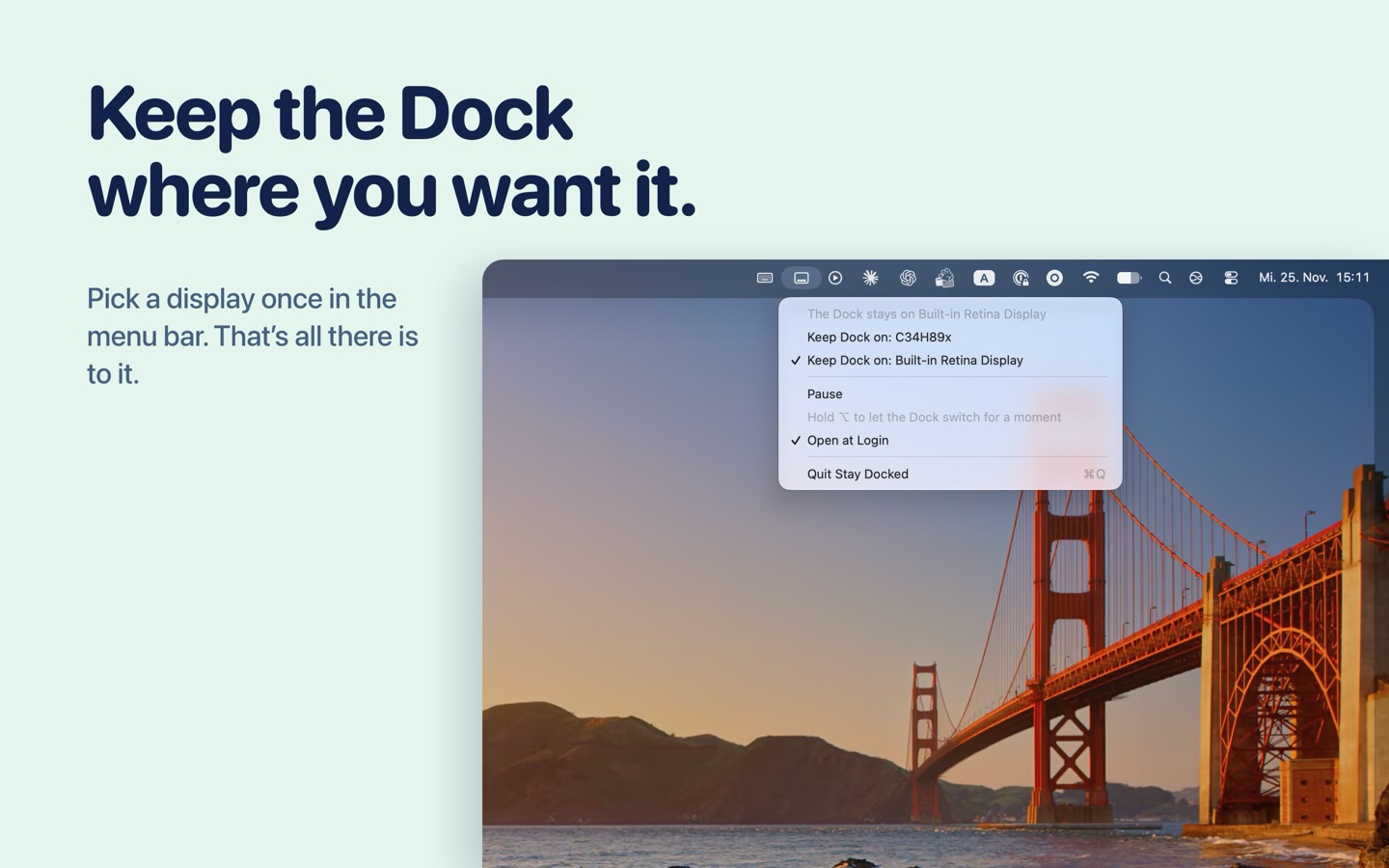
Choose the display once.
With Stay Docked, right in the menu bar.
Back where it belongs.
If you like, Stay Docked brings the Dock back by itself.
And there it stays.
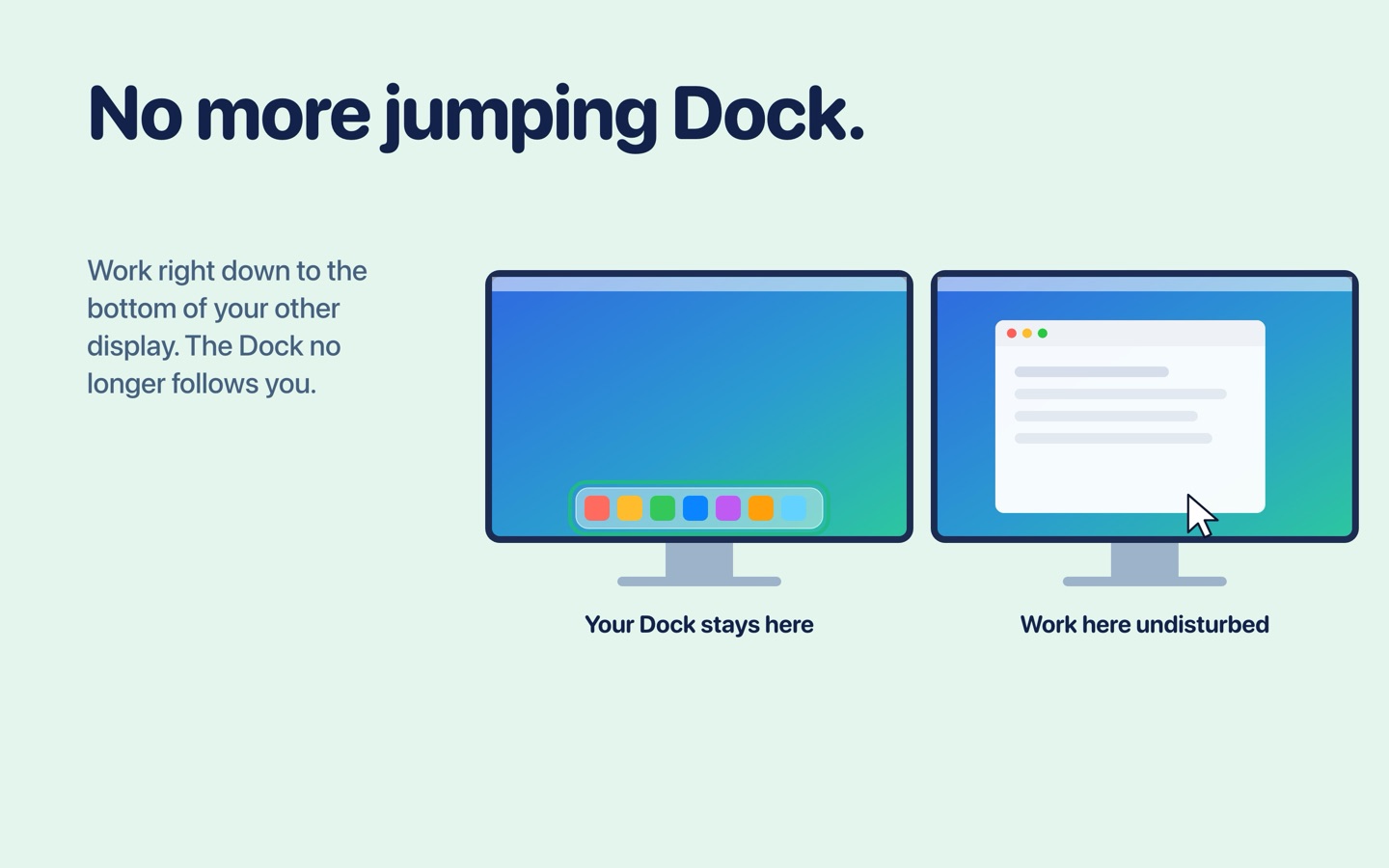
Even when you work at the very bottom of the other display.
Stay Docked
Coming soon to the Mac App Store
When the Dock jumps to the other display
For macOS 15 or later, Apple silicon and Intel. One-time purchase, coming soon to the Mac App Store.
Sound familiar? You're working on your second display, the pointer brushes the bottom edge – and the Dock jumps to the wrong screen. Stay Docked keeps it on the display you choose. No system settings to change, nothing new to learn.
Choose once
Choose a display once in the menu bar, and the Dock stays there.
Bring it back
Optionally brings the Dock back automatically.
Light
Lives in the menu bar and uses virtually no energy.
Private
No data collection, no network connections, App Sandbox.
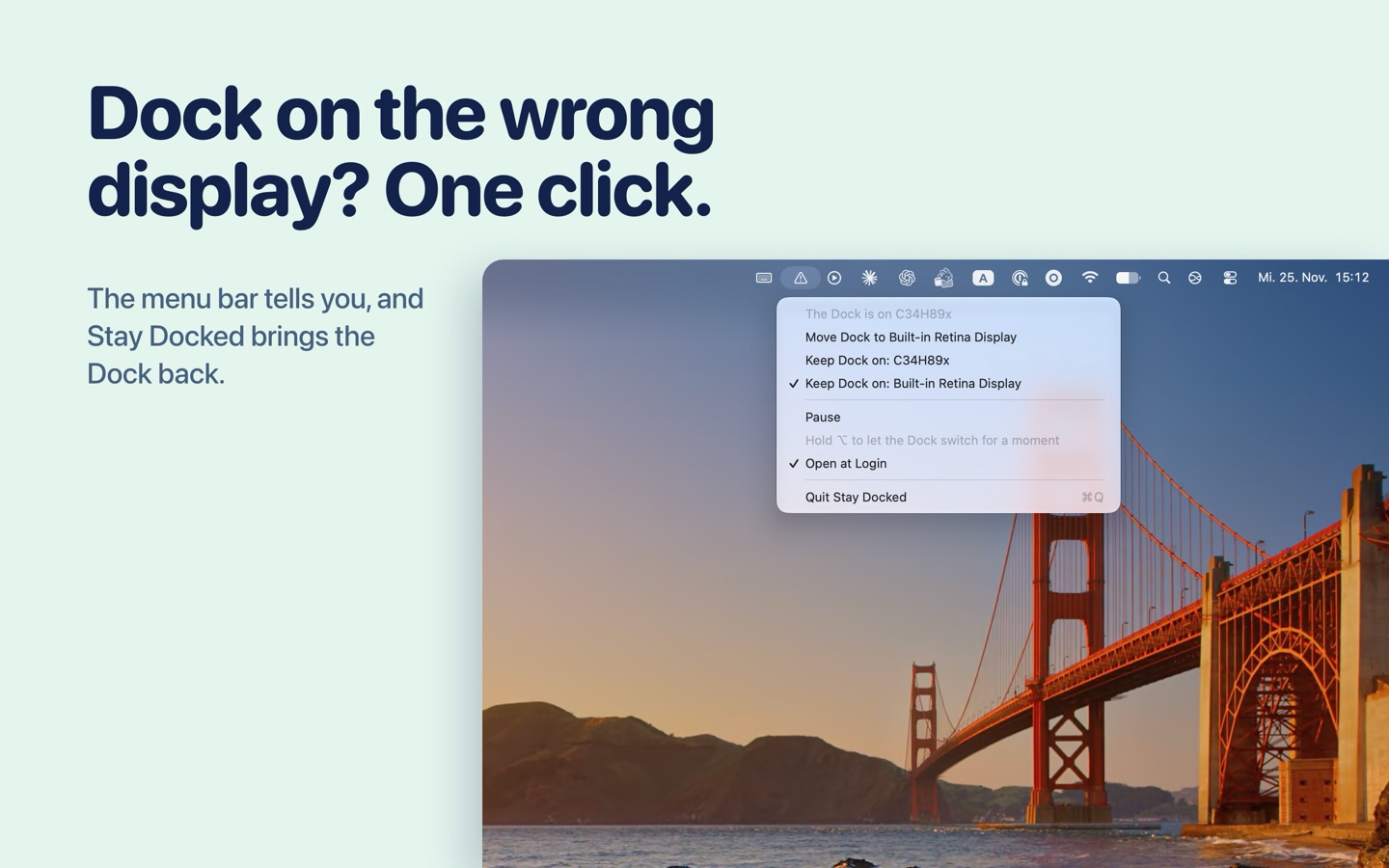
The menu bar shows a warning triangle.
The Dock is on a different display than the one you chose. With the optional permission, choose “Move Dock to …”. Without it, push the pointer down at the bottom edge of your chosen display once.
My Dock is on the left or right.
A side Dock does not move between displays at the bottom edge, so Stay Docked has nothing to do and stays out of the way.